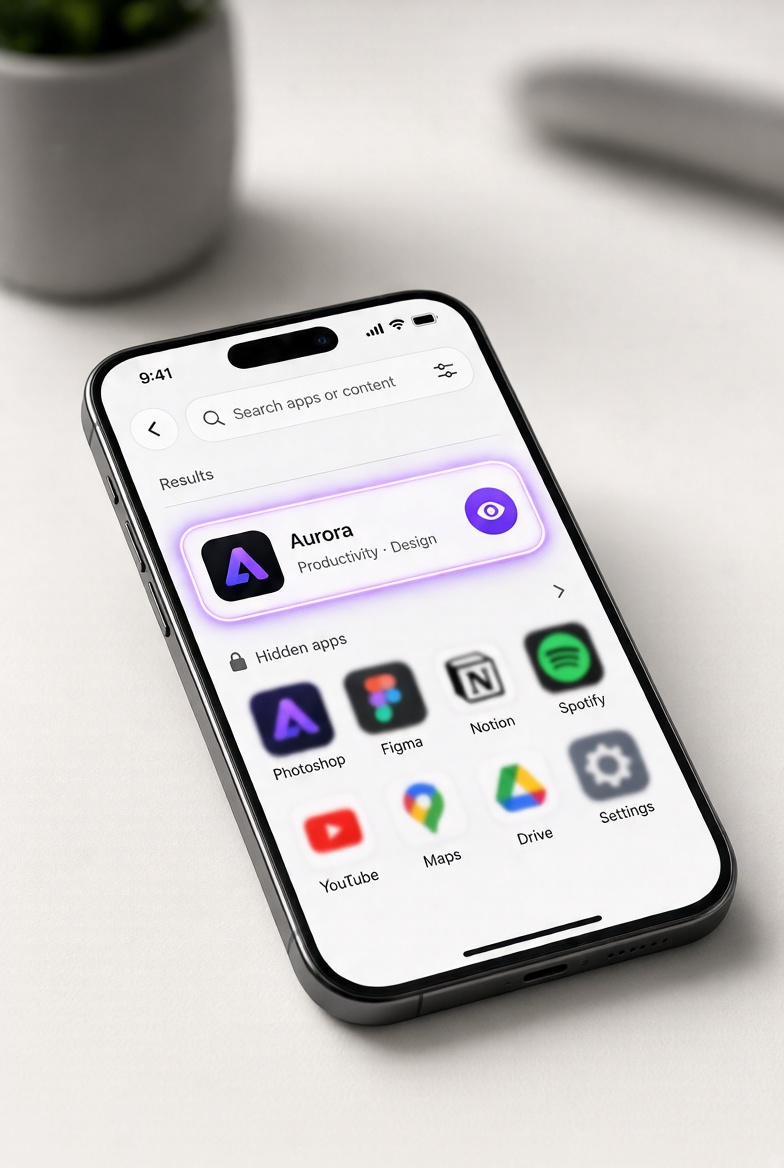
Have you ever searched frantically through your home screens for an app, only to realize it has completely vanished? Whether you tucked an application away to declutter your display, misplaced it in a multi-page folder, or need to track down software locked away by iOS privacy features, finding it can sometimes feel like hunting for a needle in a digital haystack.
Fortunately, locating and unhiding applications on your iOS device is straightforward once you know where to look. Here is a complete guide on how to uncover any missing or hidden app on your iPhone.
1. The Quickest Method: Use Spotlight Search
If an app is still installed on your device but simply missing from your layout, Spotlight Search is your fastest tool:
- Swipe down from the middle of any home screen to bring up the search bar.
- Type the exact name of the application you are looking for.
- If the app exists on your device, it will appear instantly. Note: If an app has been locked or hidden using iOS biometric features, it will not appear in Spotlight search or notifications for privacy reasons.
2. Check the App Library and Hidden Folders
Apple's App Library (located by swiping past your final home screen page to the far right) catalogs every single app installed on your phone.
- Standard Search: Scroll or search inside the App Library.
- The Hidden Folder: If you are running recent versions of iOS that support locking or hiding apps, scroll to the bottom of the App Library to find the Hidden folder. Authenticate with Face ID, Touch ID, or your passcode to view and unhide your locked apps.
- Settings Path: You can also manage and view all hidden applications directly by navigating to Settings > Apps > Hidden Apps and authenticating.
3. Unhide Hidden Home Screen Pages
Sometimes entire pages of your home screen get hidden accidentally during routine organization.
- Press and hold any empty space on your home screen until the apps begin to jiggle.
- Tap the row of dots located at the bottom of your screen.
- Check any grayed-out, unchecked pages to restore them to your active layout, then tap Done.
4. Adjust Screen Time Restrictions
If you share your device or previously set up parental controls, an app might be blocked by restriction settings:
- Open your Settings app and tap Screen Time.
- Select Content & Privacy Restrictions.
- Tap Allowed Apps and ensure that the switches are toggled on for any features or apps you want to access.
5. Check App Store Purchase History
If an app has been completely uninstalled or hidden from your purchase list:
- Open the App Store and tap your profile icon in the top-right corner.
- Tap your Apple Account name, scroll down to Hidden Purchases, and tap Unhide.
- Alternatively, search for the app directly in the App Store and tap the download or cloud icon to restore it without repurchasing.
By utilizing these built-in iOS tools, you can easily audit your device, clean up your layout, and recover any missing applications in a matter of seconds.
Why Apps Get Lost in the First Place
We’ve all been there: you download an app for a specific purpose—maybe a temporary event ticket, a mobile game, or an extra utility—and a few weeks later, it vanishes from your home screen. It’s easy to feel a brief moment of panic, wondering if the app uninstalled itself or if your phone is acting up.
The reality is that iOS gives us a lot of flexibility when it comes to organizing our devices, but that flexibility often works against us. Between multi-page folders, accidentally swiping away entire home screen panels, or tucking apps away to reduce screen time and digital clutter, things get lost easily. Apple also offers built-in privacy tools—like hiding purchases or utilizing the App Library—which can make apps disappear entirely from view without actually deleting them. Understanding how iOS handles these hidden states takes the frustration out of the search and gives you full control back over your device's layout.
Conclusion
Finding a missing application on your iPhone doesn't have to feel like a digital scavenger hunt. Whether you rely on the lightning-fast Spotlight Search, dive into the App Library, restore a missing home screen panel, or check your Screen Time restrictions, iOS provides plenty of built-in ways to recover your software without losing your data.
By taking a few minutes to audit your home screen, review your app visibility settings, and manage your storage properly, you can keep your iPhone clean, organized, and tailored exactly to your daily routine.